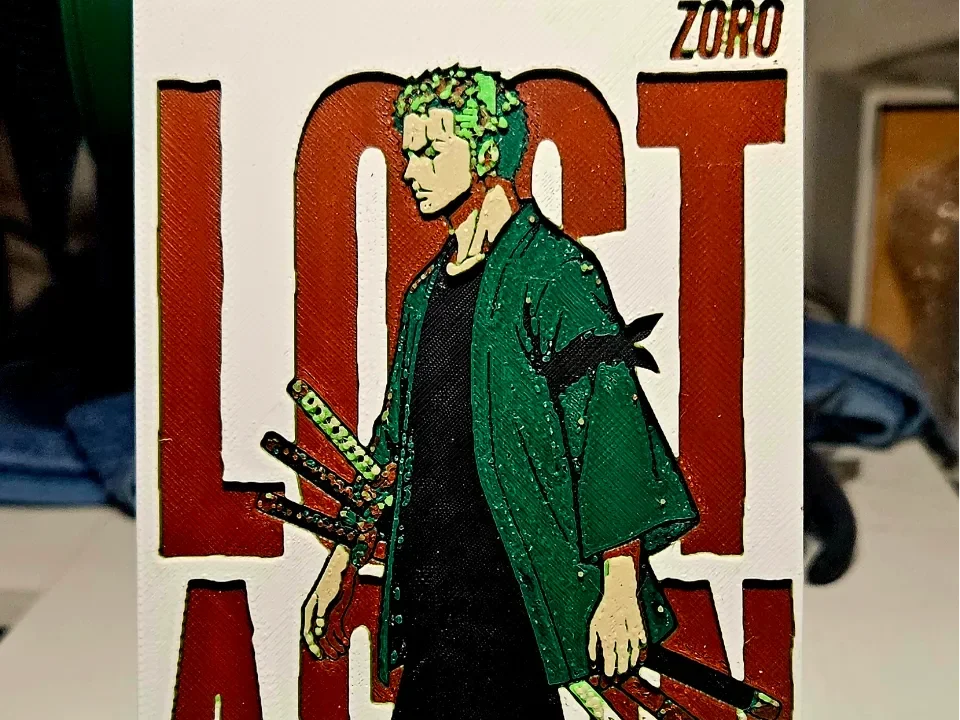
One Piece Zorro
Roronoa Zoro stands brooding against bold crimson lettering spelling "LOST MAN" — a nod to the swordsman's legendary sense of direction. Mano's 3d_Art captures him in his iconic green haori, three swords in hand, rendered in deep forest greens, blacks, and pale skin tones against a stark white and red backdrop. The layered filament work gives remarkable depth to his determined silhouette.
View on MakerWorldRequired Filaments6
Bambu Lab Basic Mistletoe Green
Prusament Galaxy Green
Bambu Lab Basic Beige
Bambu Lab Basic Jade White
Why filament details may vary
Filament details (brand, color, and TD value) may not exactly match the designer's original specification. In some cases, the designer didn't specify exact filaments and we've matched the closest options we could find. Always check the original listing for full details.
Some filament links are affiliate links — we may earn a small commission at no extra cost to you. Learn more
Sign up to track your filament inventory and check your matches.
Create accountYou Might Also Like
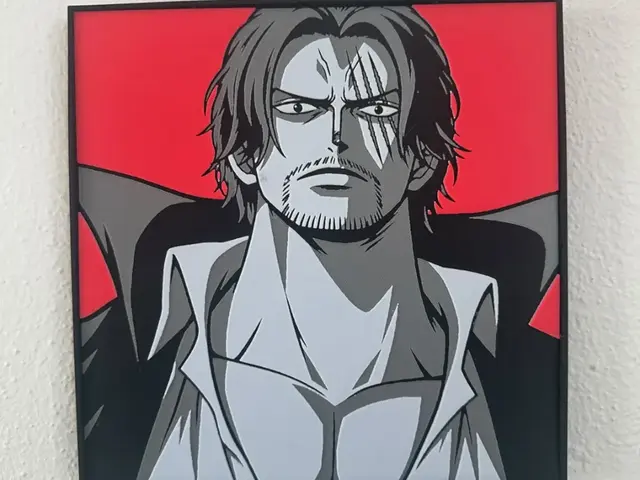
Shanks Red Collection
by TowerLayers
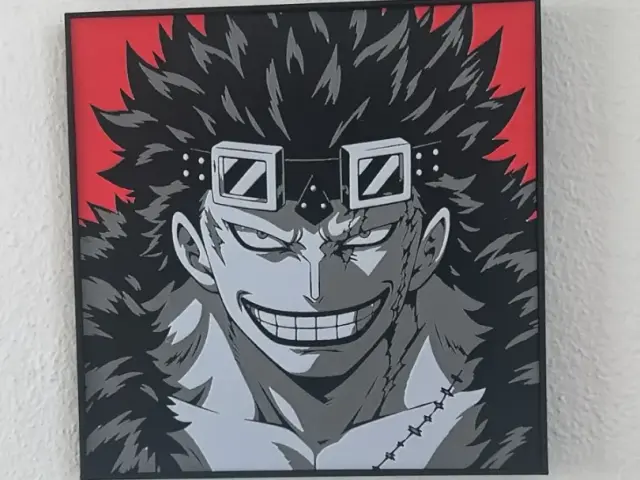
Eustass Kid Red Collection
by TowerLayers
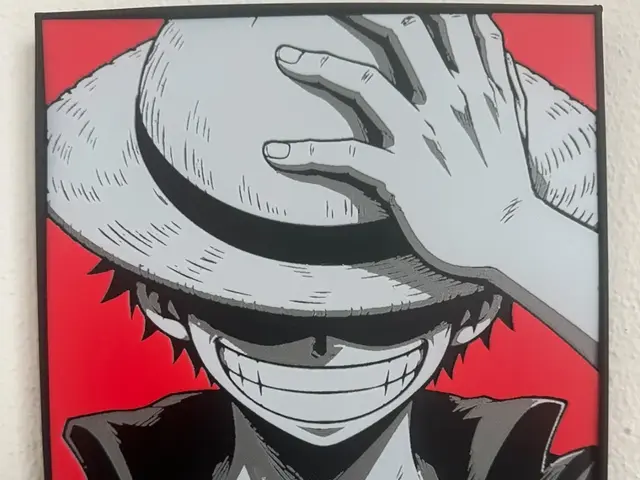
Luffy red collection
by TowerLayers
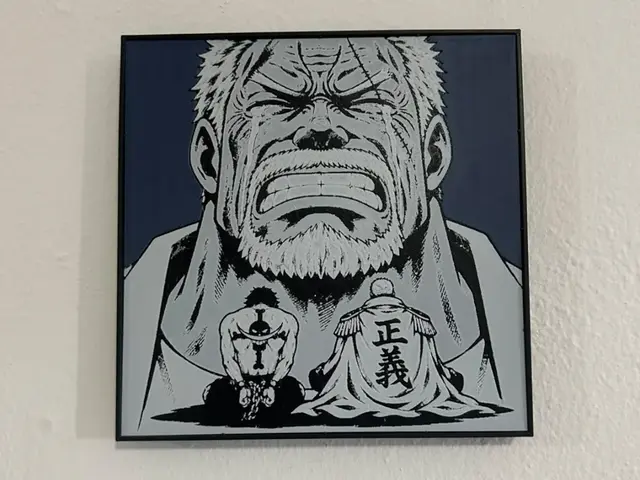
Garp And Ace Hueforge
by TowerLayers
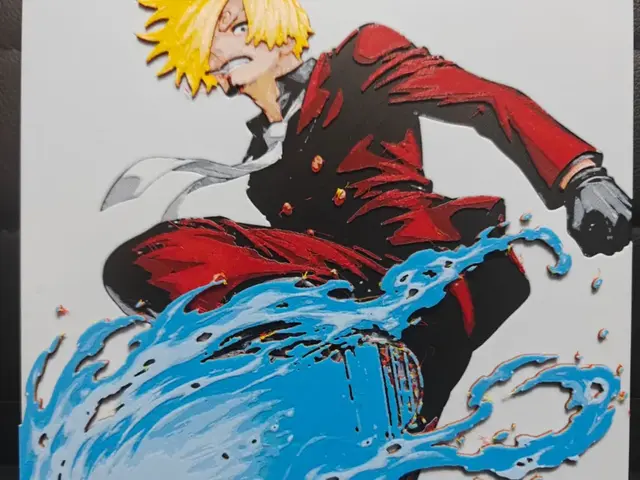
Sanji
by TheHueforgeLady
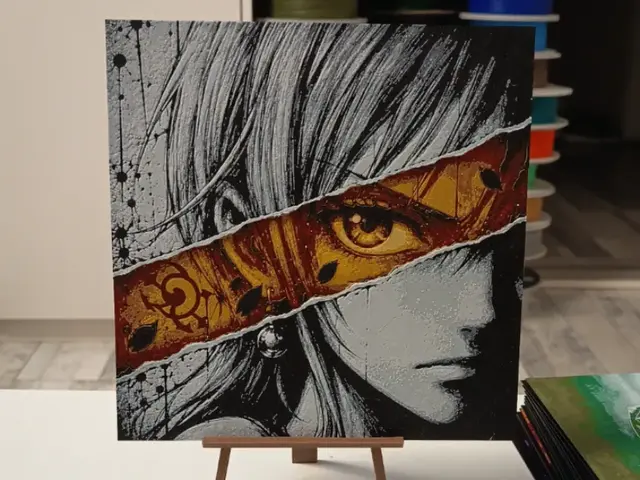
One Piece Nami Hueforge
by 3DNesy
Recent Articles
View all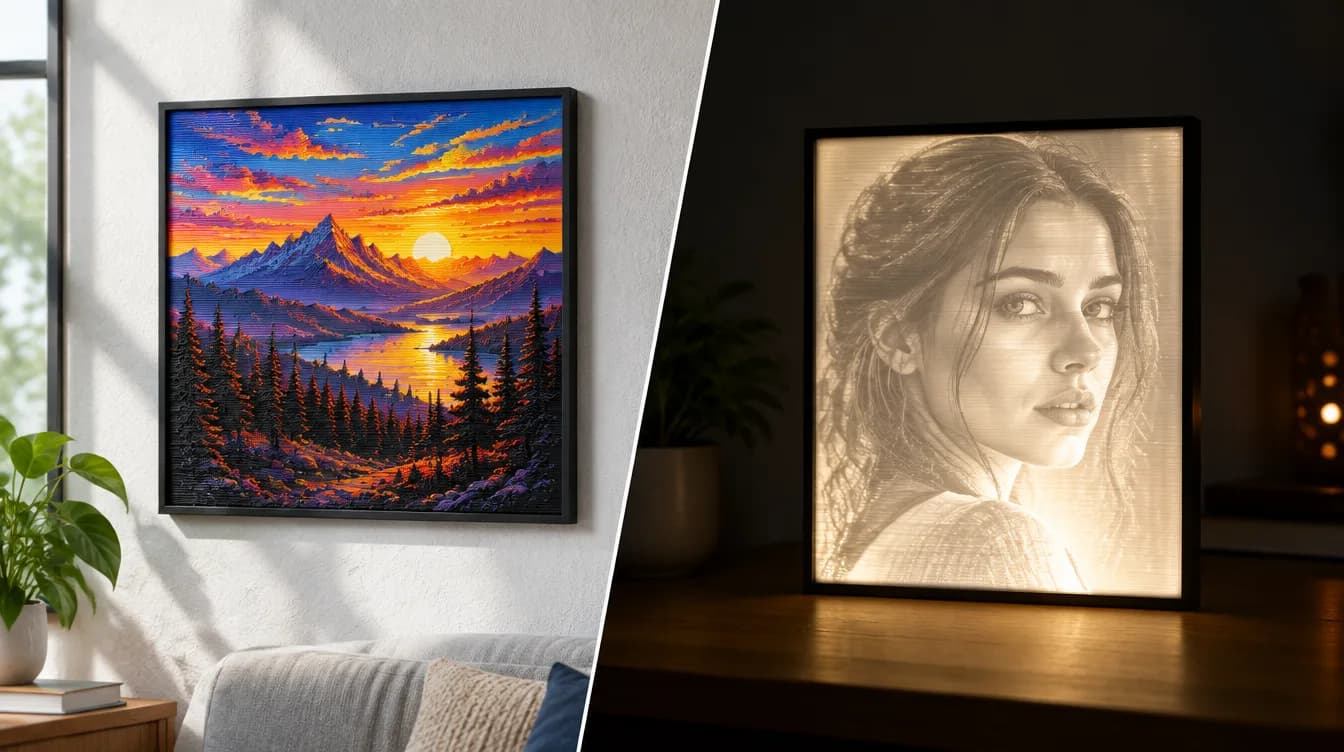
HueForge vs Lithophane: What's the Difference (and Which Should You Print)?
HueForge vs lithophane, explained: how each turns a photo into a print, the real differences in color, lighting, difficulty and cost, and when to choose one over the other.
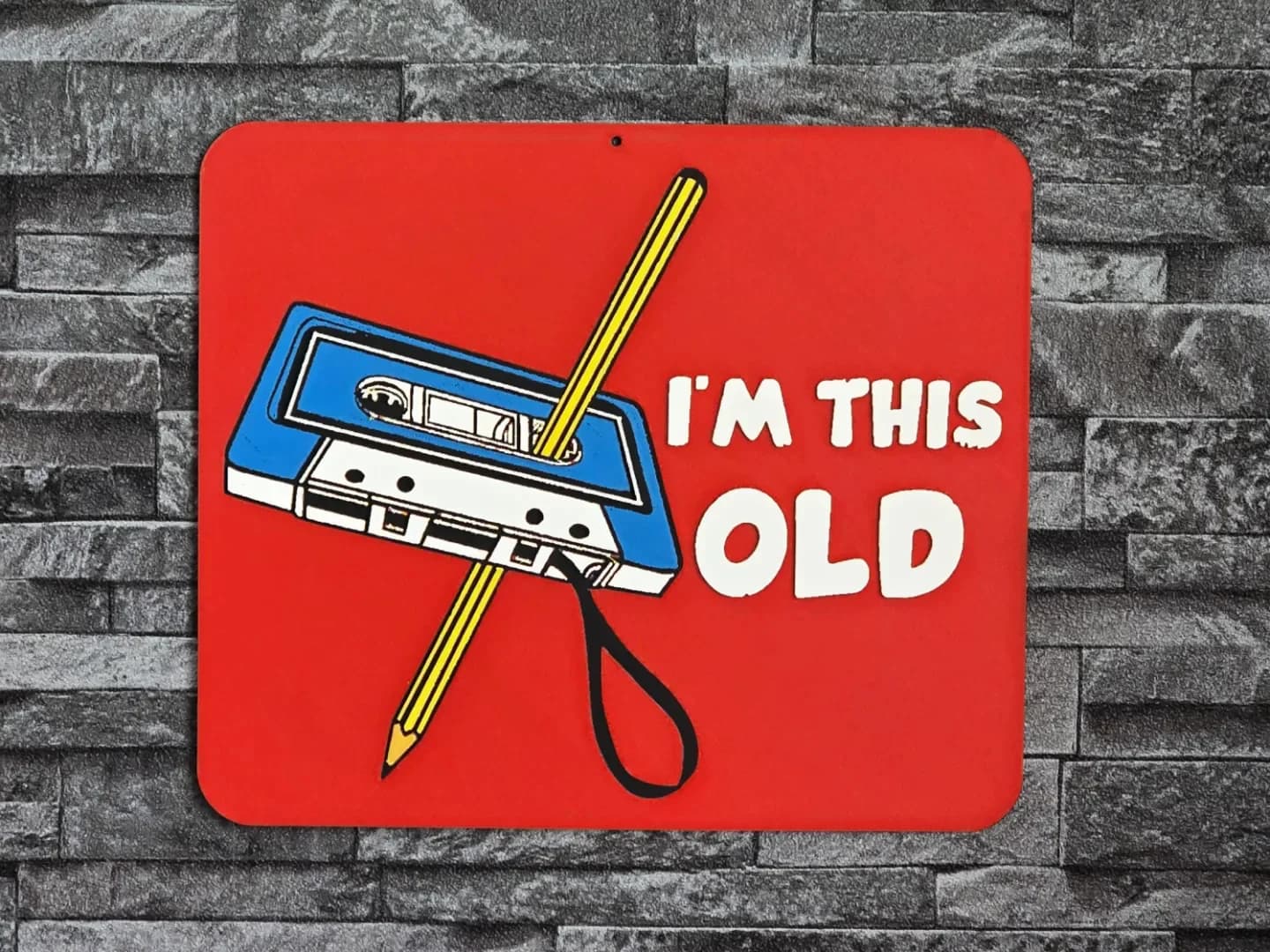
Best 3D Printed Gifts for Everyone on Your List — Made with HueForge
The best 3D printed gifts for everyone on your list, made with HueForge — custom pet and portrait art, ornaments and gift tags, bookmarks, and fandom prints matched to the recipient, plus how to turn gift requests into income.
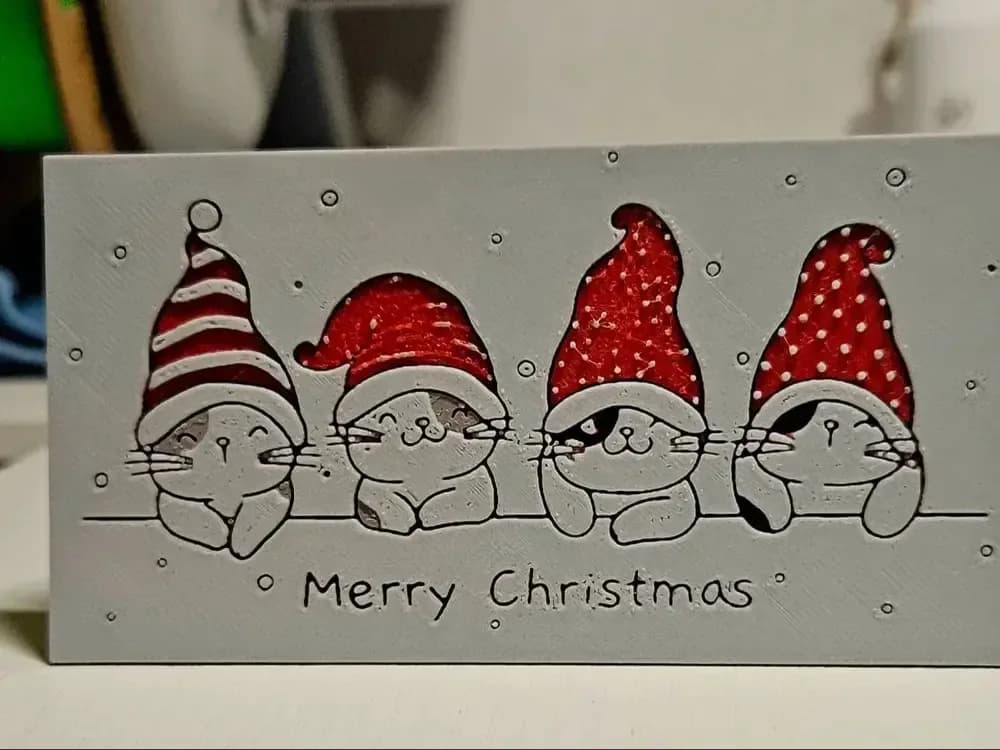
Best Christmas 3D Prints for HueForge: Ornaments, Santa & Holiday Movie Posters
The Christmas 3D prints worth making as HueForge filament paintings — tree ornaments, Santa and snowmen, holiday movie posters, festive fandom crossovers, and gift tags, grouped by theme.