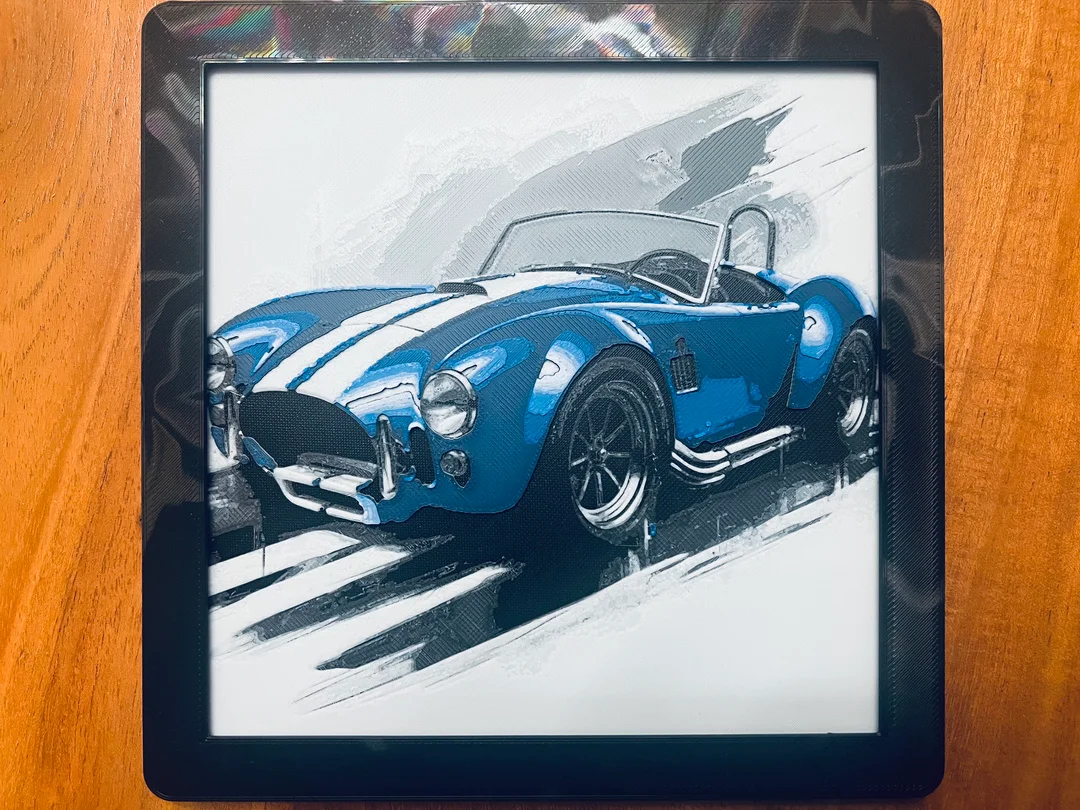
Shelby Cobra
A legendary racing icon roars to life through dynamic brushstroke effects and dramatic shadows. The classic Shelby Cobra's distinctive curves gleam in brilliant blue with crisp white racing stripes cutting across its muscular form. JustBe 3D Printing captures the raw power and timeless elegance of this automotive masterpiece, with chrome details and wire wheels rendered against expressive gray washes that suggest speed and motion.
View on PatreonRequired Filaments4
Bambu Lab Basic Black
Bambu Lab Basic Blue Gray
Bambu Lab Basic Jade White
Bambu Lab Basic Cobalt Blue
Why filament details may vary
Filament details (brand, color, and TD value) may not exactly match the designer's original specification. In some cases, the designer didn't specify exact filaments and we've matched the closest options we could find. Always check the original listing for full details.
Some filament links are affiliate links — we may earn a small commission at no extra cost to you. Learn more
Sign up to track your filament inventory and check your matches.
Create accountYou Might Also Like
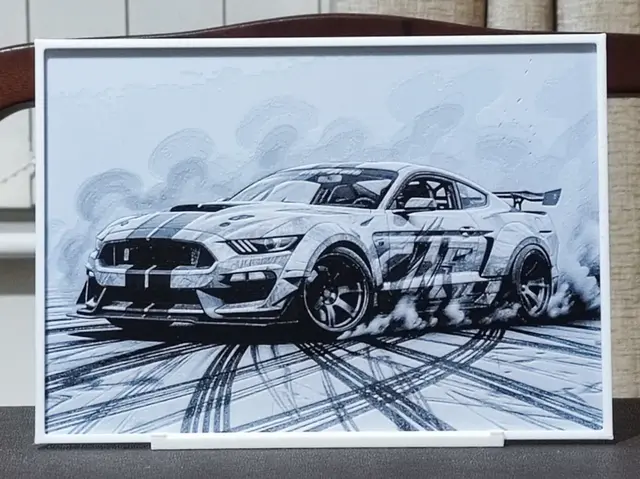
Mustang - 2 Color HueForge
by BoDad
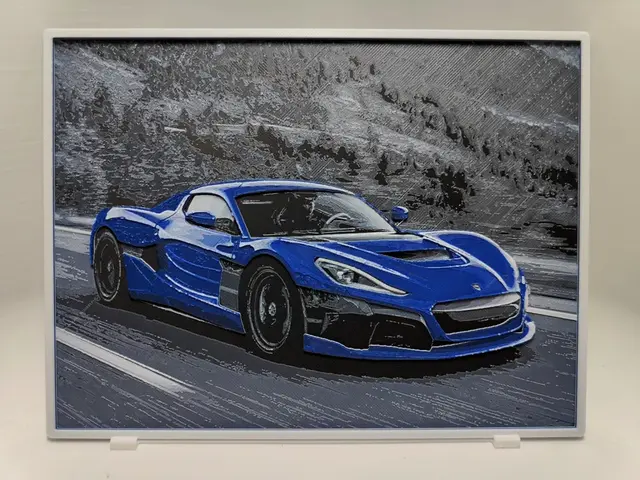
Rimac Nevera - Hueforge
by BeaN
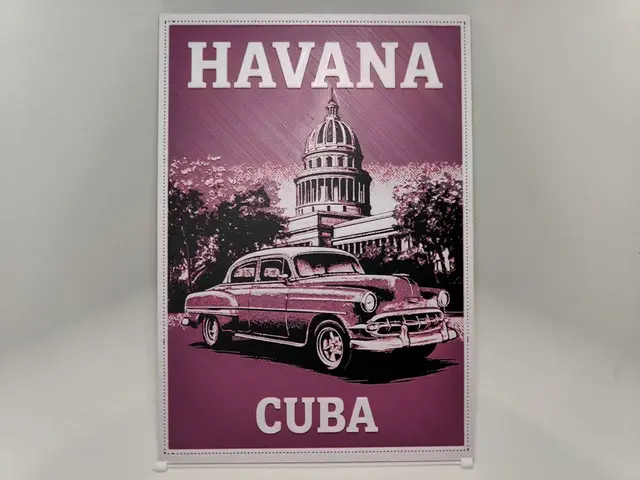
Vintage Travel Poster - Havana - Hueforge
by BeaN
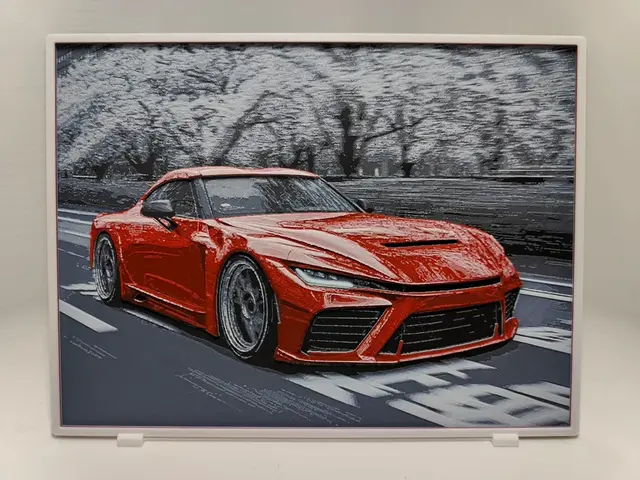
Toyota GR GT - Hueforge
by BeaN
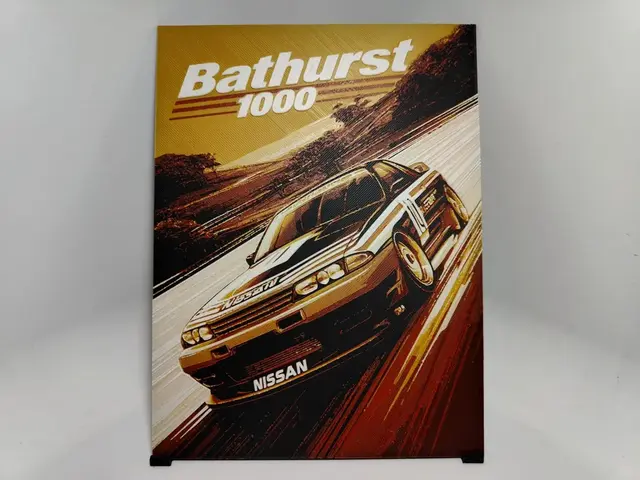
Bathurst 1000 Poster - Hueforge
by BeaN
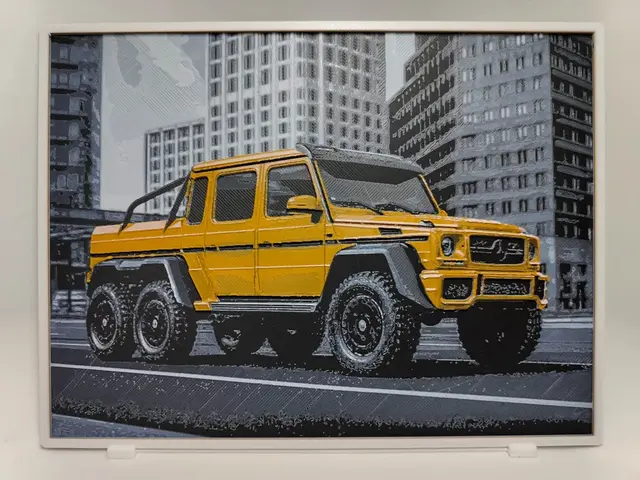
Mercedes G63 6×6 - Hueforge
by BeaN
Recent Articles
View all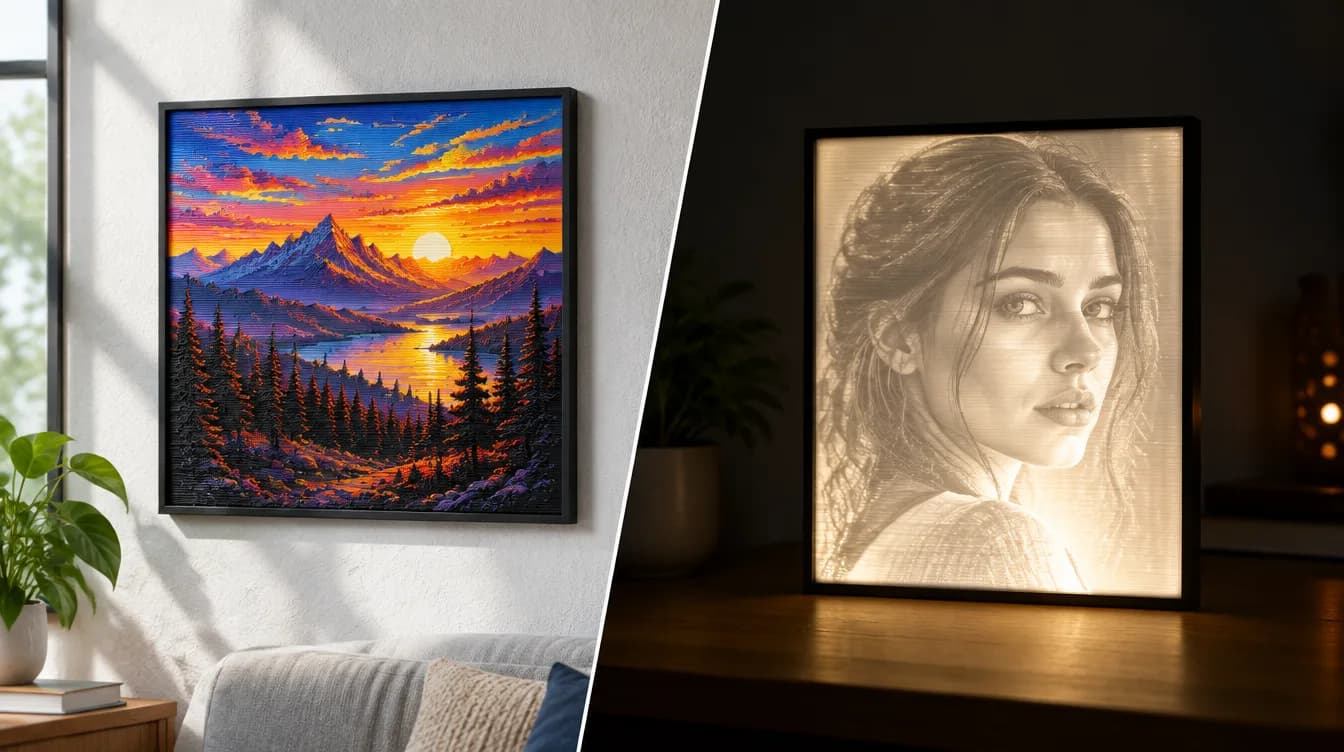
HueForge vs Lithophane: What's the Difference (and Which Should You Print)?
HueForge vs lithophane, explained: how each turns a photo into a print, the real differences in color, lighting, difficulty and cost, and when to choose one over the other.
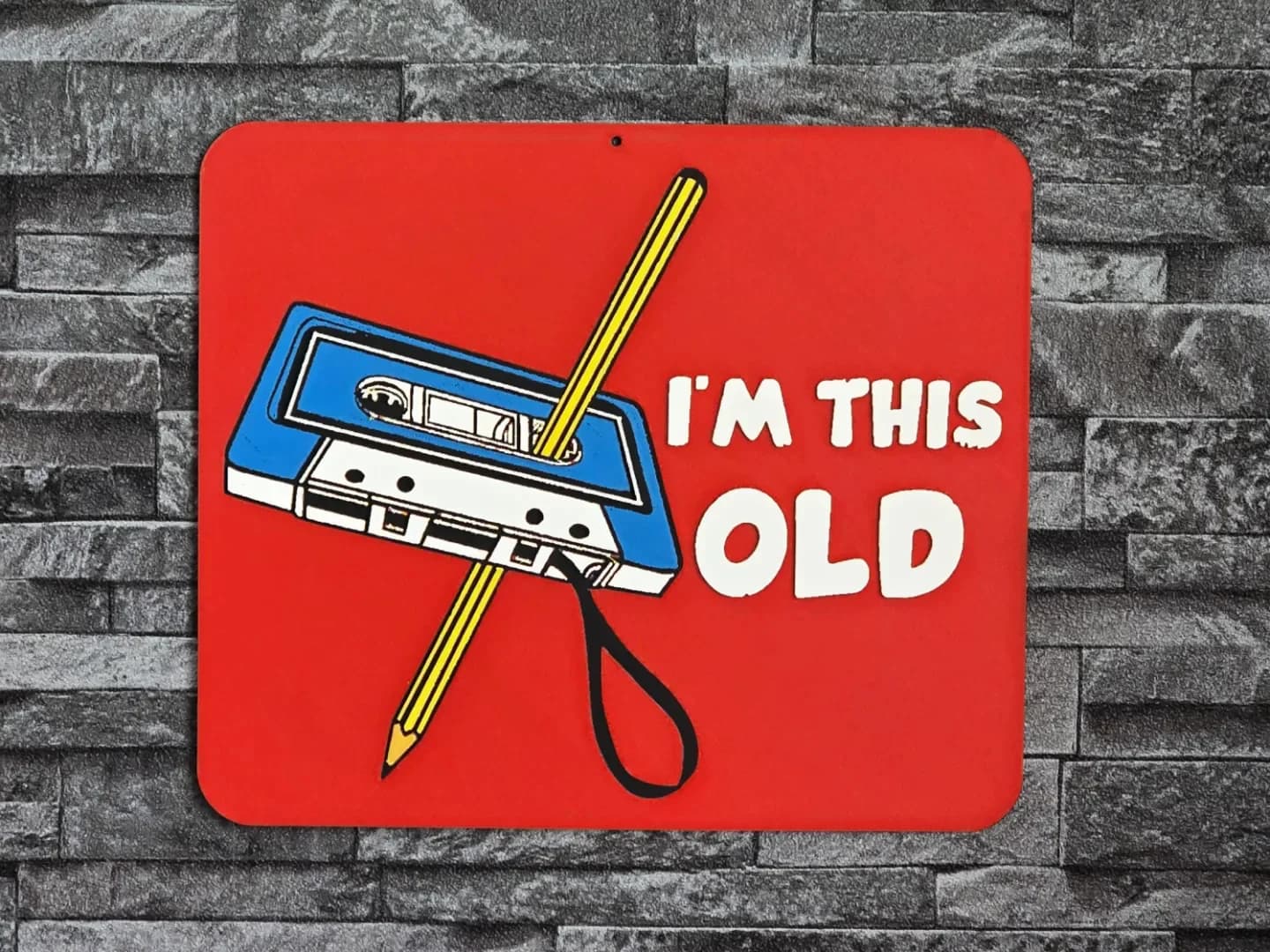
Best 3D Printed Gifts for Everyone on Your List — Made with HueForge
The best 3D printed gifts for everyone on your list, made with HueForge — custom pet and portrait art, ornaments and gift tags, bookmarks, and fandom prints matched to the recipient, plus how to turn gift requests into income.
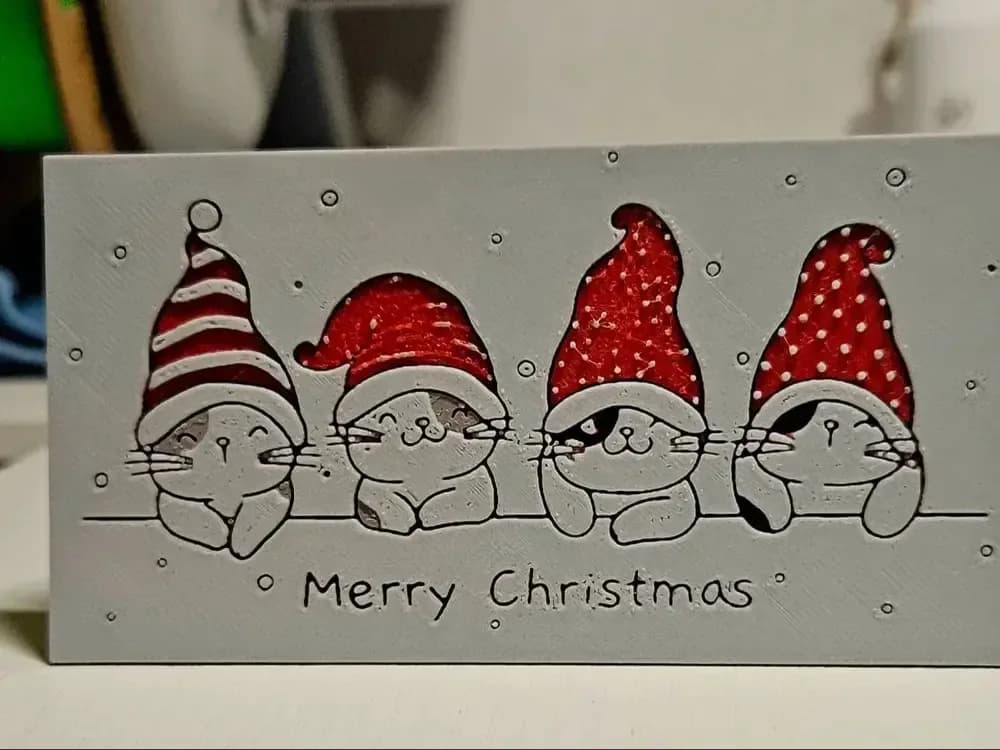
Best Christmas 3D Prints for HueForge: Ornaments, Santa & Holiday Movie Posters
The Christmas 3D prints worth making as HueForge filament paintings — tree ornaments, Santa and snowmen, holiday movie posters, festive fandom crossovers, and gift tags, grouped by theme.